
How to Change a PNG to a PDF?
Changing a PNG to a PDF is very simple now. The easiest way is to use a PNG to PDF Converter. You only need to upload your PNG image, click Convert to PDF, and download the new PDF file.
Our PNG to PDF Converter lets you convert one or multiple PNG images in your browser. You can also combine several images into one PDF or download each image as a separate PDF.
How to Change a PNG to a PDF Online?
The need to convert a PNG to a PDF comes up many times. Follow these steps to change your PNG image into a PDF.
Step 1. Open PNG to PDF Converter
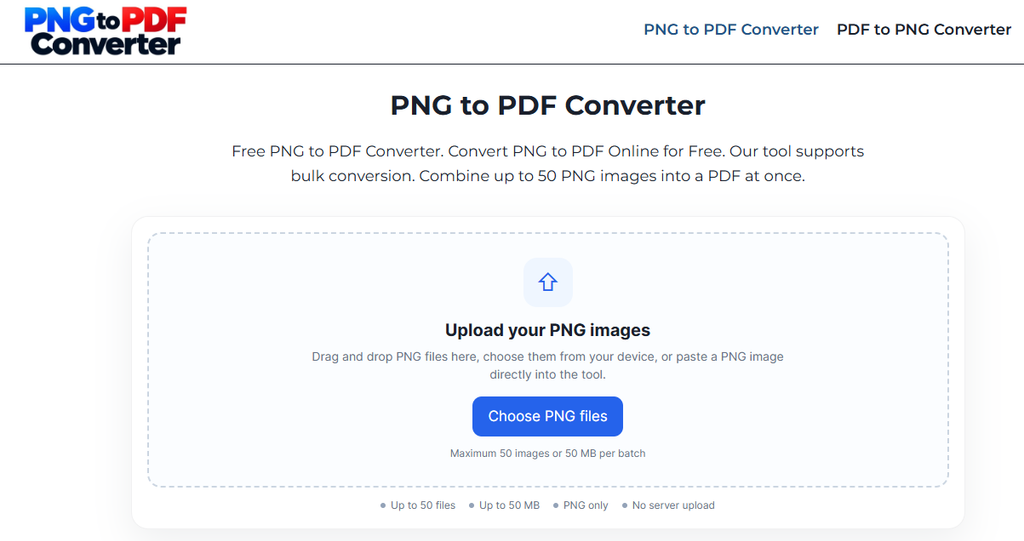
There is no need to download and install any software to turn PNG images into PDF. Simply open a web browser and visit pngtopdfconverter.org. We made this tool with user ease in mind. It is fully free to use and supports bulk conversion with a high limit.
Step 2. Upload Your PNG Image
Click the Choose PNG files button to select your images from your device. You can also add files in other ways. The tool supports:
- Uploading files from your device
- Dragging and dropping PNG images
- Copying and pasting a PNG image
After you upload a file, it will appear inside the converter like this:
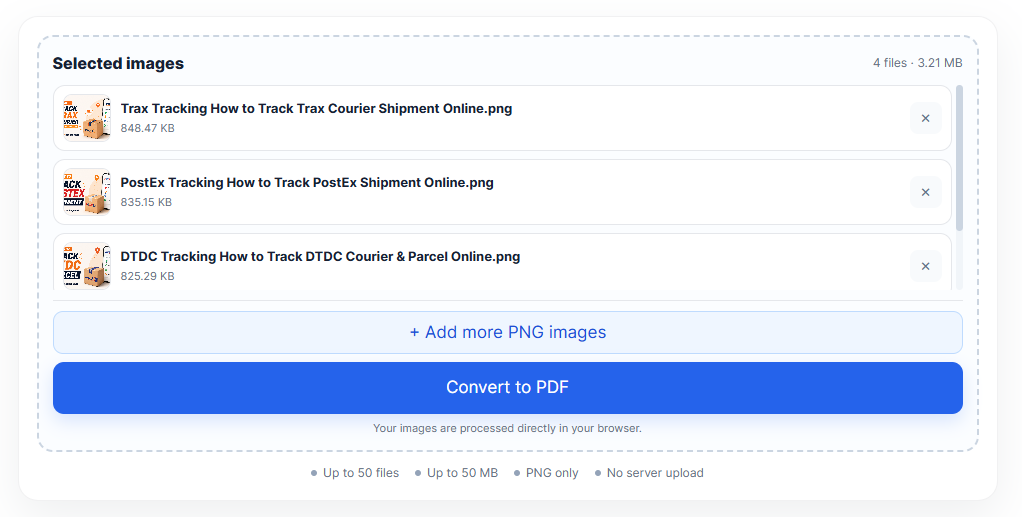
The tool shows your selected images in a file list. The list shows the file name and file size. You can also remove any image you do not want to convert. Click the × button next to the file to remove it.
Need to add more images? Simply click Add more PNG images.
Step 3. Convert PNG to PDF
Once your images are ready, click the Convert to PDF button. The tool will start processing your PNG images. A progress bar will appear while the conversion runs.

You do not need to leave the page or install another program. The converter handles the process directly in your browser.
Step 4. Download Your PDF
When the conversion finishes, the results section will appear.
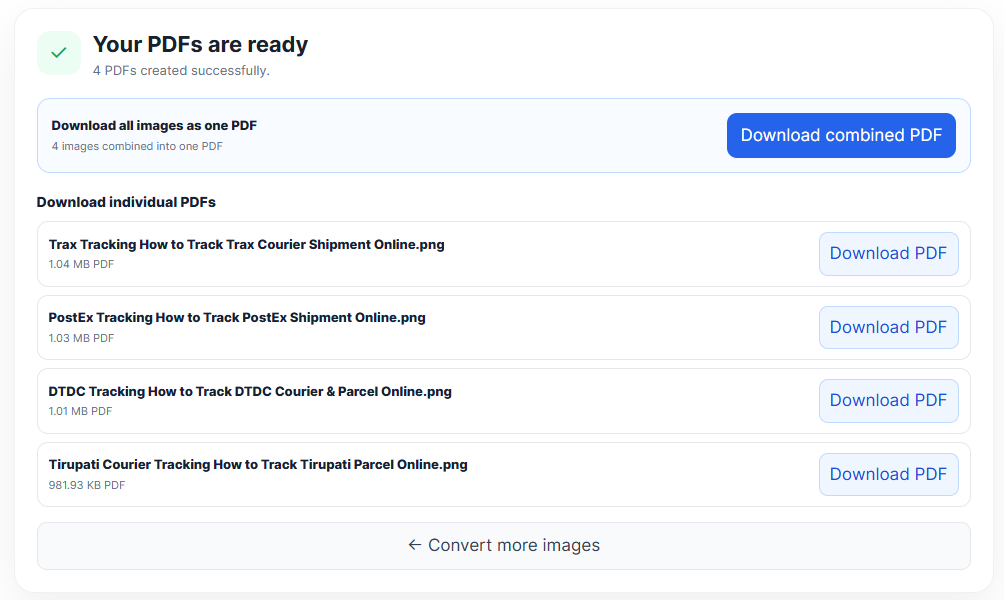
You get two options.
Download combined PDF
This option puts all your PNG images into one PDF file. Each image appears on its own page.
For example, if you upload 5 PNG images, the tool creates one PDF with 5 pages.
Download individual PDFs
You can also download each PNG image as a separate PDF file. This option works well when you do not want to combine all your images into one document.
How to Turn PNG Images Into Separate PDF Files
Sometimes you do not want one combined PDF. You may need a separate PDF for every image. Our converter supports this too.
Upload your PNG images and start the conversion. After the process finishes, the results section shows a separate download button for each image.
For example, if you upload 4 PNG images, you can download 4 separate PDF files. This can help when you need to send, print, or store each image as its own document.
Can You Change a PNG to PDF Without Installing Software?
Yes. You can use our PNG to PDF converter instead of installing desktop software. With our tool, you can upload your PNG images from a browser and convert them there. You do not need Adobe Acrobat, image editing software, or another desktop program.
Can You Change PNG to PDF on a Phone?
Yes. You can convert PNG images to PDF from a mobile browser. Open the PNG to PDF Converter on your phone and select the PNG image or images you want to convert. Then click Convert to PDF and download the result.
PNG vs PDF: What’s the Difference?
PNG and PDF serve different purposes. The W3C PNG specification describes PNG as a lossless image format that supports sample depths from 1 to 16 bits and can include an alpha channel for transparency.
PDF, on the other hand, works as a page-based document format. A PDF can contain one or more pages, and each page can include text, graphics, and images.
| PNG | |
| Image format | Document format |
| Best suited to individual images | Can contain multiple pages |
| Commonly used for graphics and screenshots | Commonly used for documents and sharing |
| Easy to use as an image | Easy to print and share as a document |
| Usually represents one image | Can combine text, images, and other content |
What Happens to Image Quality When You Convert PNG to PDF?
Converting a PNG to PDF does not automatically make the image blurry. The result depends on factors such as the original image dimensions and resolution. A large, clear PNG can produce a clear PDF page.
Our PNG to PDF Converter places the PNG image onto a PDF page. It does not require you to edit the image before conversion.
Common PNG to PDF Use Cases
You can use a PNG to PDF converter for many everyday tasks.
1. Convert scanned pages to PDF
If you scan pages and save them as PNG images, you can combine them into one PDF.
2. Combine screenshots into one PDF
You can turn multiple screenshots into a single PDF for easier sharing.
3. Turn receipts into a PDF
You can convert receipt images into PDF files for storage or record-keeping.
4. Create a PDF from forms
You can combine image-based forms into one PDF document.
5. Prepare images for printing
A PDF can make a group of images easier to organize and print.
6. Share several images as one file
Instead of sending many PNG files, you can combine them into one PDF.
Can You Separate PNG from PDF?
Yes, if for some reason you need to make separate PNG files for individual pages inside a PDF, you can do that easily using our PDF to PNG converter. Simply upload your PDF file to the tool and convert. Then download individual PNG files for each page.
Bottom Line
Changing a PNG to PDF is very easy with our tool. With our PNG to PDF Converter, you can upload one or multiple PNG images, convert them in your browser, and download the results in a few clicks. You can combine up to 50 PNG images into one PDF or download each image as a separate PDF.