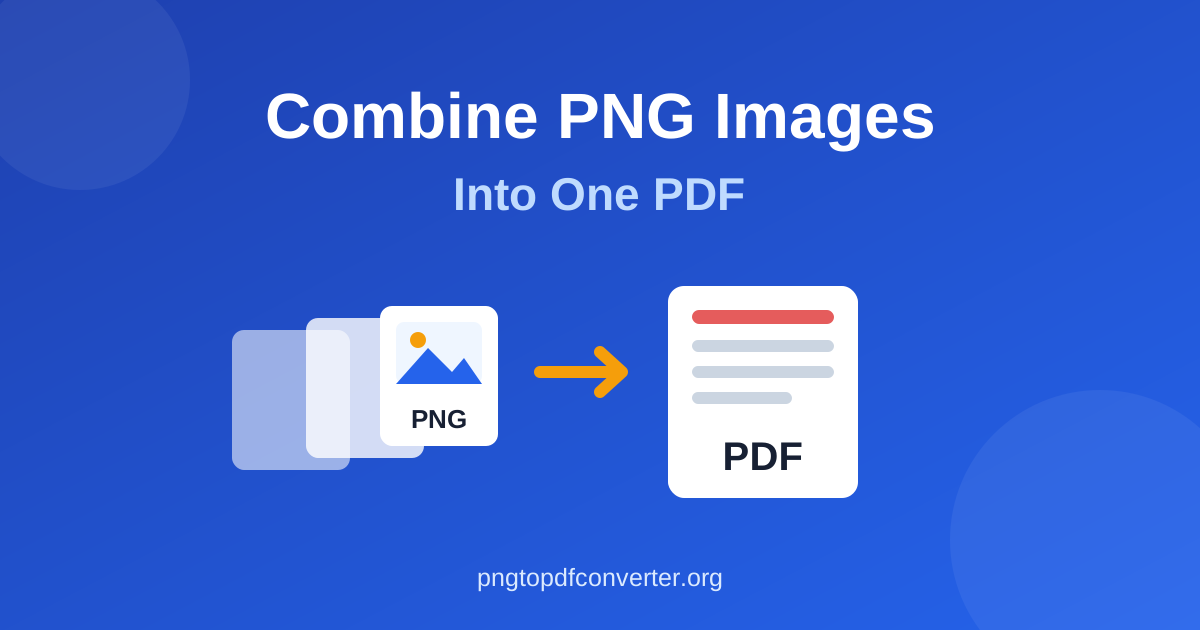
You can combine many PNG images into one PDF in under a minute.
A free online converter gives you the fastest route. You add your images and drag them into order. Then you click convert and download one PDF. The file holds one image on each page.
This guide shows that method step by step. It then covers page order, page size, quality, and file size. It also shows the same job on Windows, Mac, iPhone, and Android.
Why combine PNG images into one PDF?
A folder of separate PNG files feels awkward to share. For example, email apps limit attachments. Chat apps, meanwhile, shuffle the order.
A teacher or client must open twelve loose images one by one. In short, a single PDF fixes all of that:
- One file to send, store, and print
- Pages stay in the order you set
- The file opens the same way everywhere
- Text and pictures stay fixed in place
People often merge PNGs for scanned documents. They also join screenshots for a report or mockups for a client. Receipts for an expense claim form another common case. So do photos and artwork for a portfolio.
Do you only need to convert a single image? See our guide on how to change a PNG to a PDF.
Instead, this article covers the multi image case. You bring several PNGs. You get one document.
The fastest way: combine PNGs online, free
The PNG to PDF converter on this site merges up to 50 PNG files into one PDF.
It runs entirely in your browser. Therefore, your images stay on your device the whole time. You also install nothing and create no account.
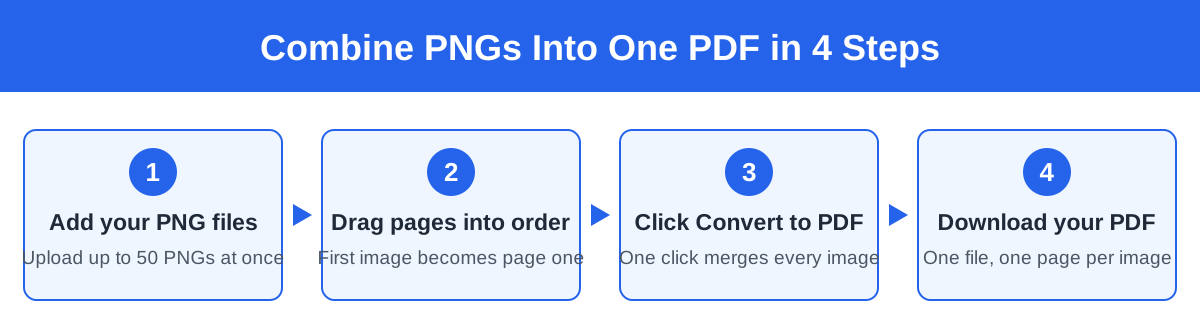
Step by step
- Open the PNG to PDF converter.
- Click the upload area or drag your PNG files onto it. You can add up to 50 images at once.
- Check the order. Drag the thumbnails until the pages run in your sequence. The first image becomes page one. The second becomes page two.
- If available, choose your page size and orientation. A4 suits most documents well. The settings section below explains the options.
- Click the convert button.
- Download the finished PDF. Every image now forms a page in one file.
That covers the whole process. Most people, in fact, need only these six steps.
Next, the sections below help you nail the details. They cover order, size, quality, and sharing.
Get the page order right before you convert
People most often get the order wrong, and a wrong order then forces you to start over. Two simple habits prevent that pain.
The file naming trick
First, rename your images before you upload anything. Add number prefixes so the files sort correctly:
01-cover.png02-contents.png03-chapter-one.png10-appendix.png
So use two digits, not one. A file named 2.png sorts after 10.png on most systems. Sorting reads the first character first.
In contrast, 02.png and 10.png sort the way you expect. Keep the original name after the number. You can still tell the files apart.
Check the thumbnails
Rather, look at the thumbnails after uploading, not the file names. The converter shows each page in order. You then see exactly what readers will see.
Read through them like a reader would. Move from the first page to the last. Drag any page that sits out of place.
As a result, this ten second check prevents the top complaint. Nobody likes a document with a scrambled sequence.
Page size, orientation, and margins explained
Three settings shape how your images sit on the pages. However, not every tool offers all three.
Still, each setting helps you choose well. Learn what they do before you convert.
Page size: A4, Letter, or fit to image
- A4 measures 210 by 297 mm. Most of the world uses A4 as standard office paper.
- Letter measures 8.5 by 11 inches. Similarly, the United States and Canada use Letter as standard.
- Fit to image matches each page to the image size. It adds no scaling and no empty space.
Choose A4 or Letter for printing or document reading. Every page then comes out uniform.
Choose fit to image when the images carry the content. Artwork and screenshots, for example, often suit this option best. You thus avoid any resizing at all.
Orientation: portrait or landscape
Portrait pages stand taller than they stand wide. Landscape pages, in contrast, do the reverse.
Match the orientation to your images. A tall phone screenshot looks tiny on a landscape page. Then wide empty margins squeeze it from both sides.
Does your set mix portrait and landscape shots? The problems section below covers your options.
Margins
Margins form the blank borders around each image. A small margin looks clean. It also stops a printer from clipping content.
No margin suits full page images and photos. Some tools, however, offer a margin choice.
Documents usually look best with a standard margin. Image collections usually look best with none.
Image quality and final file size
PNG keeps every pixel, so PNG files can grow large. A merged PDF can also grow large. Several high resolution PNGs soon reach a size email rejects.
Two ideas explain what happens, namely detail and compression.
DPI in plain terms
DPI means dots per inch. In other words, it describes detail relative to printed size. Rough guide:
- Screens normally use 72 to 96 DPI images
- Everyday printing looks fine at 150 DPI
- Sharp professional print uses 300 DPI
A PNG screenshot might span 2,000 pixels. It carries plenty of detail across an A4 page. It would, however, look soft across a poster.
Most combined PDFs live on screens or home printers. Therefore, your existing PNGs already carry enough detail. You rarely need to upscale or change anything.
When to compress
Compression trades a little quality for a much smaller file. Compress the file in these cases:
- The file must fit an attachment or upload limit
- People will only view the PDF on screens
- You merged many large PNGs, like camera photos
As a result, small quality losses stay invisible on screens. That makes compression a smart trade there.
Avoid heavy compression for print masters. Fine line art and small text show losses first.
Follow a practical routine instead. Convert at full quality first and check the size. Then compress a copy only if the size causes a problem.
Combine PNGs on Windows without extra software
Windows 10 and 11 include a built in printer. Microsoft Print to PDF can merge images without any downloads. Microsoft Support explains the print dialog options in detail.
- Put all the PNGs in one folder. Name them in order with the numbering trick above.
- Select all the files, right click, and choose Print.
- Choose Microsoft Print to PDF as the printer.
- Set the page size and orientation. Click Print and choose a save location.
Now consider the honest limits. The folder sort order controls the page order. You get little control over margins and quality.
The final file can also grow bigger than a converter file. This route works in a pinch.
Still, the online converter works quicker for image sets you care about. It also gives you a visual order check.
Combine PNGs on Mac with Preview
Apple includes Preview with macOS as its image viewer. Preview can also merge images into one PDF. The Apple Support guide to combining files into a PDF covers the Finder route too.
- Select your PNGs in Finder and right click them. Open them with Preview in one window.
- Drag the thumbnails in the sidebar into your order.
- Choose File, then Print.
- Set your paper size and orientation. Open the PDF menu and choose Save as PDF.
Now consider the honest limits. Gathering every image into one Preview window can feel fiddly. Pages sometimes open in separate windows instead.
You also get no control over compression. Preview, in short, works as a decent fallback. It rarely beats the fastest route. Apple also explains how to merge or rearrange pages in Preview.
Combine PNGs on iPhone and Android
You do not need an app for this job. The converter on this site works in a mobile browser. The conversion happens on your device, so images stay on your phone.
- Open the PNG to PDF converter in your phone browser.
- Tap the upload area and pick your PNGs. Choose them from your photo library or files.
- Drag the thumbnails into order.
- Convert and download the PDF. Share it from your downloads or files app.
This route usually beats the built in phone options. Phone menus, instead, often hide merge features inside print settings. They rarely offer a way to reorder pages first.
Common problems and fixes
Pages in the wrong order. File names almost always cause this problem. First, rename files with 01, 02, 03 prefixes before uploading. Always check the thumbnails before converting.
The PDF file is huge. Your PNGs probably carry high resolution detail.
Convert first and check the size. Compress a copy if the file feels too large to send. Shrinking screenshots and scans to viewing size also helps a lot.
Pages look blurry. A tool stretches a small image beyond its real resolution. A large page size, for example, often causes this mismatch.
Therefore, match page sizes to your images. Use fit to image when the tool offers it. Above all, never upscale small PNGs.
Mixed portrait and landscape images. One PDF can hold pages with different sizes and orientations. However, some simple tools force one orientation on every page. As a result, that choice makes the odd pages look tiny.
You have three options here. Accept smaller wide pages. Rotate landscape images if the content allows it. Or, finally, use fit to image for each page.
One image will not upload. The file may contain corruption, for instance. Or the file may carry a PNG name without PNG content. Open it in an image viewer and save a fresh PNG copy. Then try once more.
A note on privacy
Many online converters upload files to their servers. They then process files there and store copies for a while.
That matters for personal documents and ID scans. It also matters for client work.
This site, in contrast, takes a different route. Its converter processes everything locally in your browser. Your files, therefore, never leave your device.
You can verify this claim yourself. Load the page and disconnect from the internet. Then run a conversion. It still works.
Do you ever need the reverse job? Our PDF to PNG converter turns PDF pages back into images. It also runs free in the browser.
Frequently asked questions
Can I combine PNGs into one PDF for free?
Yes. The converter on this site merges up to 50 PNG images into one PDF. It also charges no cost, requires no sign up, and adds no watermark.
How many PNG images can I combine at once?
This site accepts up to 50 PNG files in one PDF. Do you have more files than that?
Convert them in batches first. Then merge the resulting PDFs together. Or trim the set to pages you actually need.
Will the quality of my images drop?
A standard conversion keeps full quality. The tool places images at their original resolution.
Quality changes only when you choose compression. Compression, in turn, shrinks the file size. Even then, screens usually hide the loss.
Can I rearrange the pages after converting?
You can rearrange pages far more easily before converting. The converter thumbnails make the task quick.
A finished PDF needs a PDF editor for reordering. So take ten seconds and check the order first.
Is it safe to convert PNGs with personal information online?
The tool choice decides the safety level. Server based converters, for example, receive a copy of your files.
A browser based tool, in contrast, keeps files on your device. This one offers the safer option for private documents. Think ID scans, contracts, and similar files.
What is the difference between combining and converting?
Converting usually turns one PNG into one PDF. Combining, meanwhile, turns many PNG images into one multi page PDF. People also call combining merging. Each image then forms one page, in your chosen order.
What happens to transparent backgrounds?
Most tools place each PNG on a plain page background. Viewers usually show that background as white.
Transparent areas therefore look white in the finished PDF. Your original PNG keeps its transparency, so keep a copy if you need it.
Ready to merge your images?
You may hold a folder of PNGs right now. That folder needs to become one tidy document.
You now know every step and setting involved. The quickest route uses the PNG to PDF converter.
Add up to 50 images and drag them into order. Then convert and download the file. The tool costs nothing and works on any device. Your files stay on your device the whole time.
Ready to combine your PNGs?
Add up to 50 PNG images, drag them into order, and download one PDF. It is free, runs in your browser, and your files never leave your device.
Combine my PNG images