You can easily turn a PDF into PNG using online PDF to PNG converters. You just need to upload your PDF, and the converter will turn each page into a separate PNG image.
Our PDF to PNG Converter lets you convert PDF pages into separate PNG images directly in your browser. You can convert up to 50 PDF files with a total size of up to 50 MB. You can also download each PNG separately or download all images together in one ZIP file.
How to Change a PDF into PNG Online?
Follow these steps to convert your PDF pages into PNG images using our online tool.
Step 1. Upload PDF to Tool
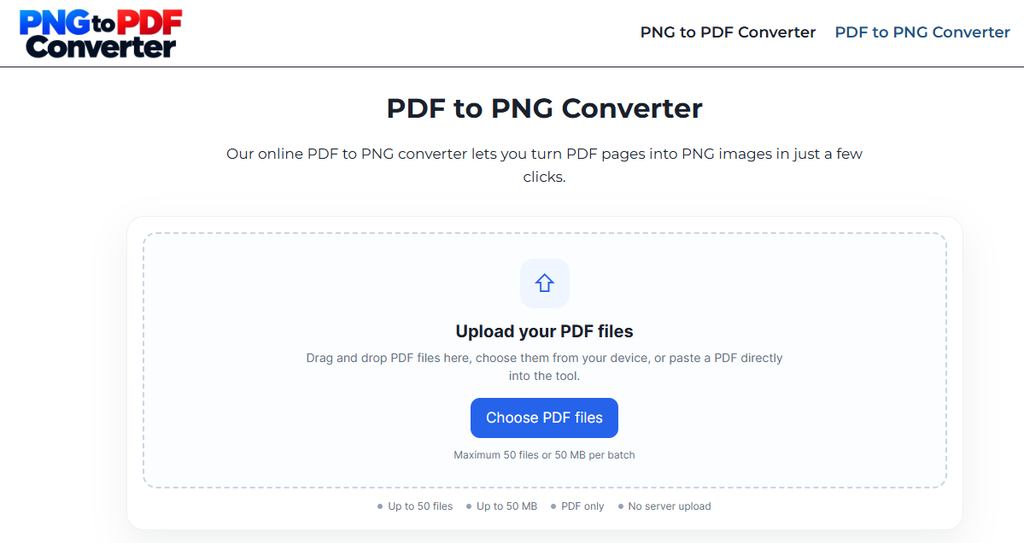
Open the PDF to PNG Converter and then upload your PDF file to it. You can upload multiple files at once within the 50MB upload limit. The tool works directly in your browser. You do not need to install software or create an account to start converting your files.
Step 2. Convert PDF to PNG
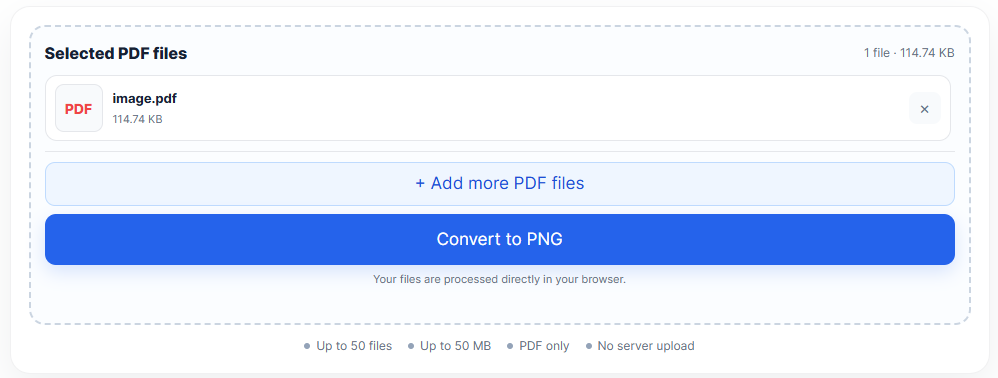
After you upload your PDFs, the tool shows them in a file list like in the image attached below. You can check each file name and its size before conversion.
Once your files are ready, click Convert to PNG. The tool will start processing your PDFs. You do not need to convert every page manually. The tool processes the pages for you.
Step 3. Download PNGs
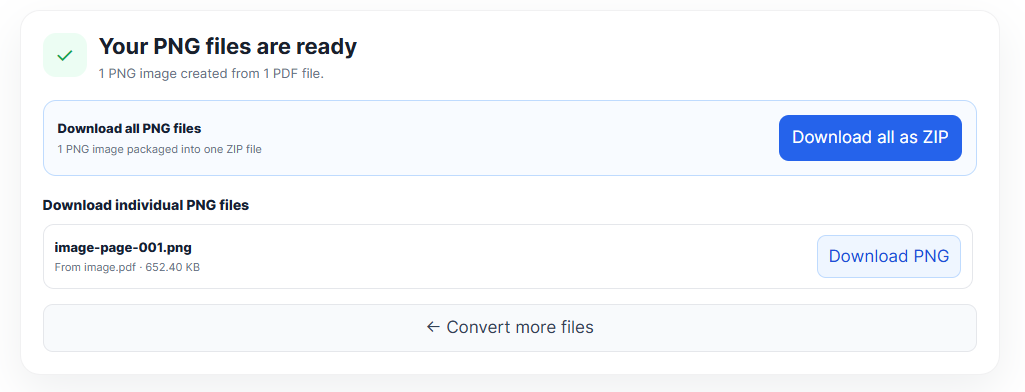
When the conversion finishes, the results section will appear. You can download each PNG image separately or download all the images together.
How to Convert a Multi-Page PDF to PNG?
A PDF can contain one page or hundreds of pages. If you need to turn a multi-page PDF into images, you can use our converter to process the pages automatically.
Upload your PDF and click Convert to PNG. The tool creates a separate PNG image for every page.
For example, a PDF with eight pages produces eight PNG images. The output file names include page numbers, making it easier to identify the images and keep them in order.
You can then download the images you need or save them all in one ZIP file.
Can You Turn PDF into PNG Without Installing Software?
Yes, you can use our online converter to turn PDF pages into PNG images without installing a desktop program.
Our PDF to PNG Converter works directly in your browser. You can upload your PDF, convert the pages, and download the images from the same page.
This can save time when you only need to convert a document occasionally. It also makes the process convenient when you use a device that does not have PDF editing software installed.
Why Convert PDF Pages to PNG?
PDF files work well for documents, but sometimes you need their pages as image files. Converting a PDF to PNG gives you more ways to use its content.
Use PDF Pages in Presentations
You can convert a PDF page into a PNG image and add it to a slide. This can help when you need to show a chart, diagram, page design, or other visual content.
Share Pages on Social Media
PNG images can be easier to share in social media posts than individual PDF pages. You can convert the page you need and use the resulting image in your post.
Use Pages in Graphic Design
Designers may need images of PDF pages for layouts, posters, presentations, and other projects. Converting the pages to PNG makes them easier to add to many design tools.
Save Individual Pages as Images
You may only need one or two pages from a large PDF. Instead of sharing the whole document, you can convert the pages into separate PNG images.
Add PDF Content to Websites
You can use PNG images to show diagrams, charts, or other visual content from a PDF on a website. However, use regular page text when readers need to search, copy, or read your written content with assistive tools.
Is It Safe to Convert PDF into PNG Online?
Our PDF to PNG Converter is designed to process your files directly in your browser. The conversion does not require you to upload your PDFs to a file-processing server.
This means you can convert your documents without sending them to a separate online conversion service. However, you should still take care when handling sensitive documents and use a trusted device and browser.
You can also read our Privacy Policy to learn more about how our website handles information.
Conclusion
Turning a PDF into PNG images is simple with our online PDF to PNG Converter. Upload one or multiple PDF files, click Convert to PNG, and download the resulting images.
You can save each image separately or download all the images in one ZIP file. The tool works directly in your browser and supports up to 50 PDF files or 50 MB per batch.